
Apple Pay automation on iOS 27
After an Apple Pay payment, Qalta can save the purchase as an expense. Amount and merchant come from the Wallet transaction; you can pick category and account each time, or set them in advance.
You need iOS 27, Qalta and Shortcuts, and cards in Wallet. On iOS 27 the Wallet trigger lives inside a new shortcut — there is no separate Automation tab.
-
Open Shortcuts and tap the + button at the bottom to create a new shortcut.
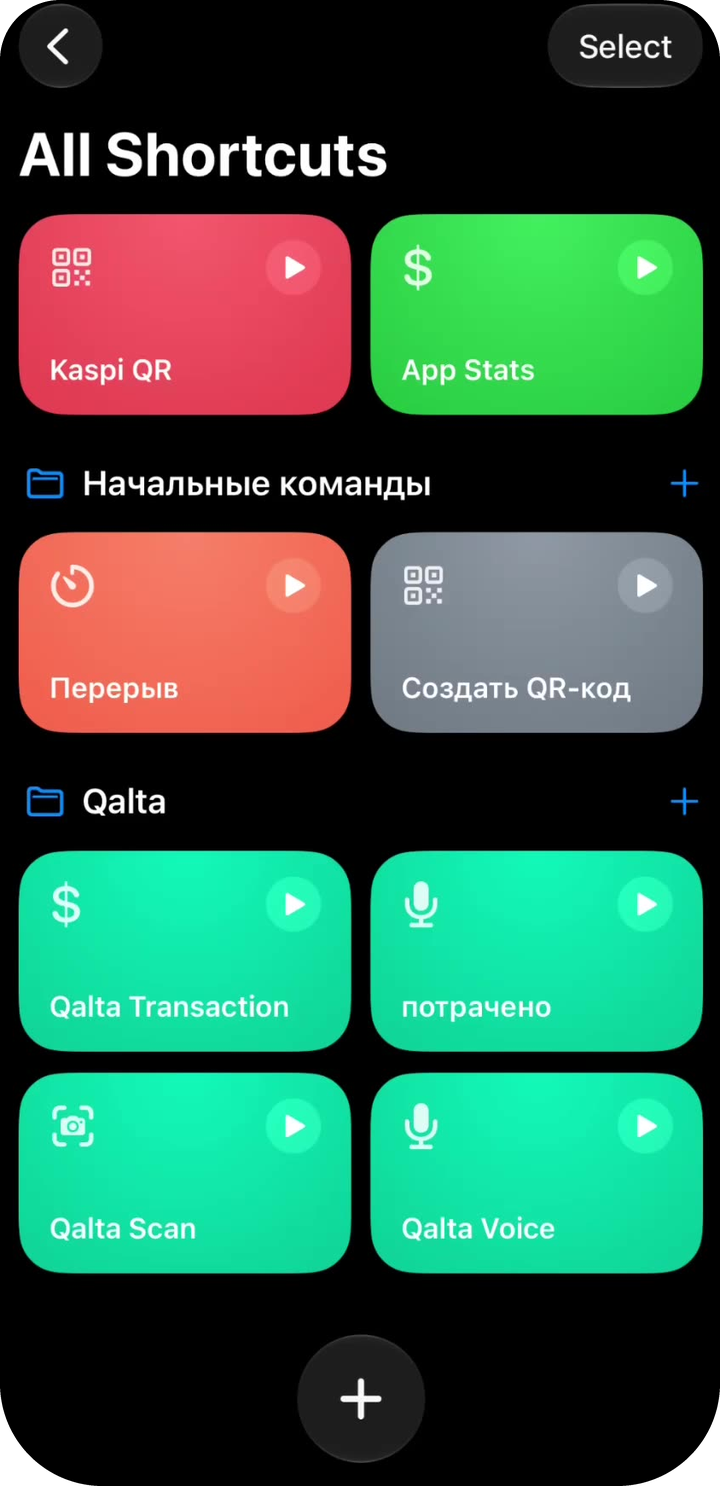
New shortcut -
An empty editor opens. In the action search, tap the Automation chip — or type “Automation”.
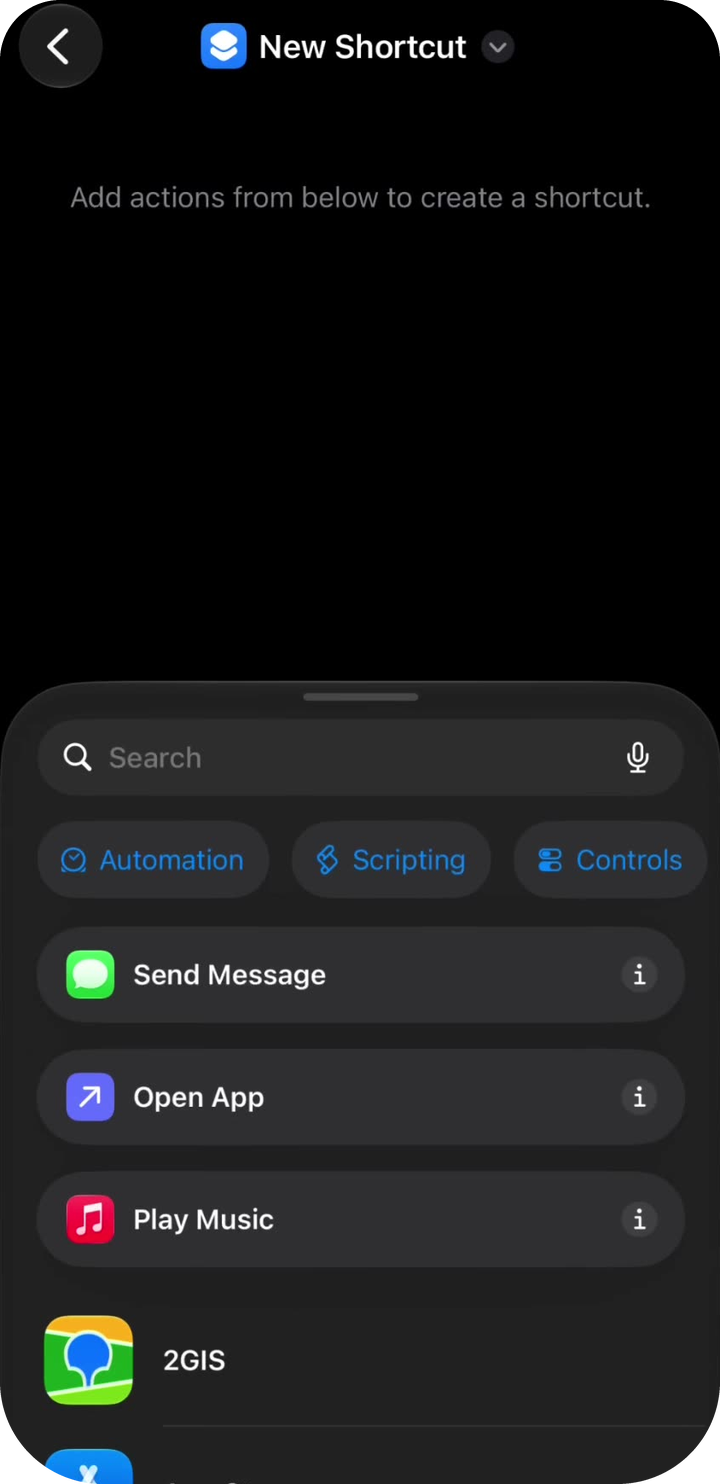
Automation chip -
Under Apps, tap Wallet — “When I tap a Wallet Card or Pass” (payment at a terminal).
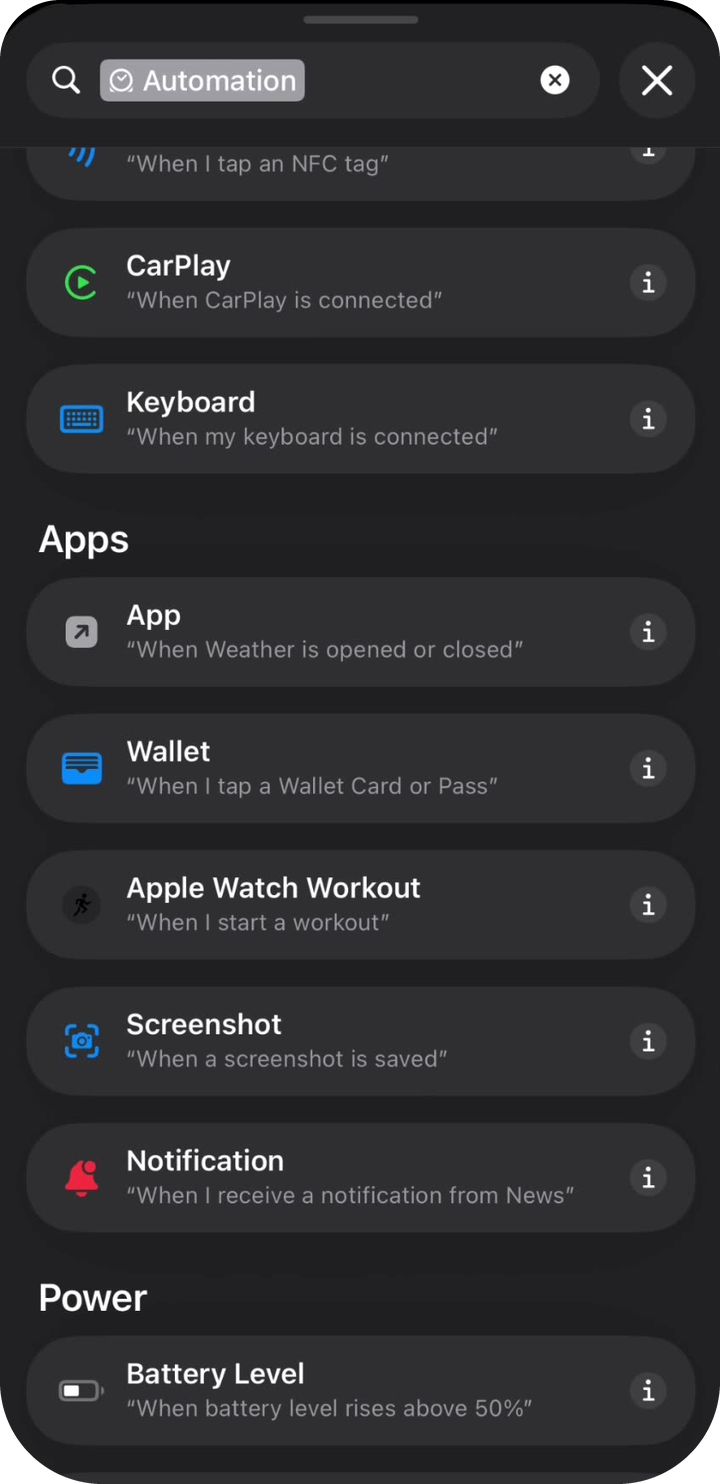
Wallet trigger -
The first block says When Any Card is tapped. If you only want Qalta to run for some cards, tap the blue Any Card chip.
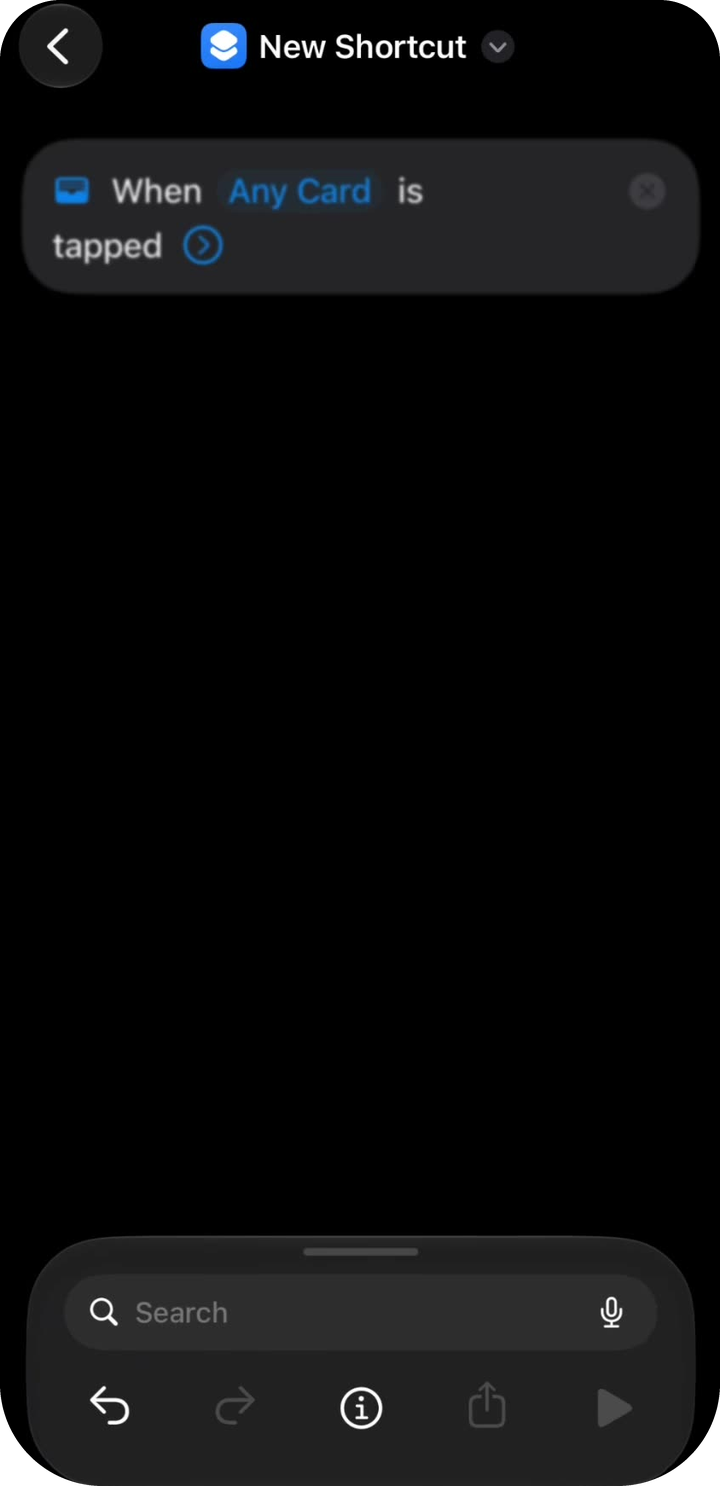
Any Card -
Select the card you pay with (for example Kaspi Gold). Tap the checkmark.
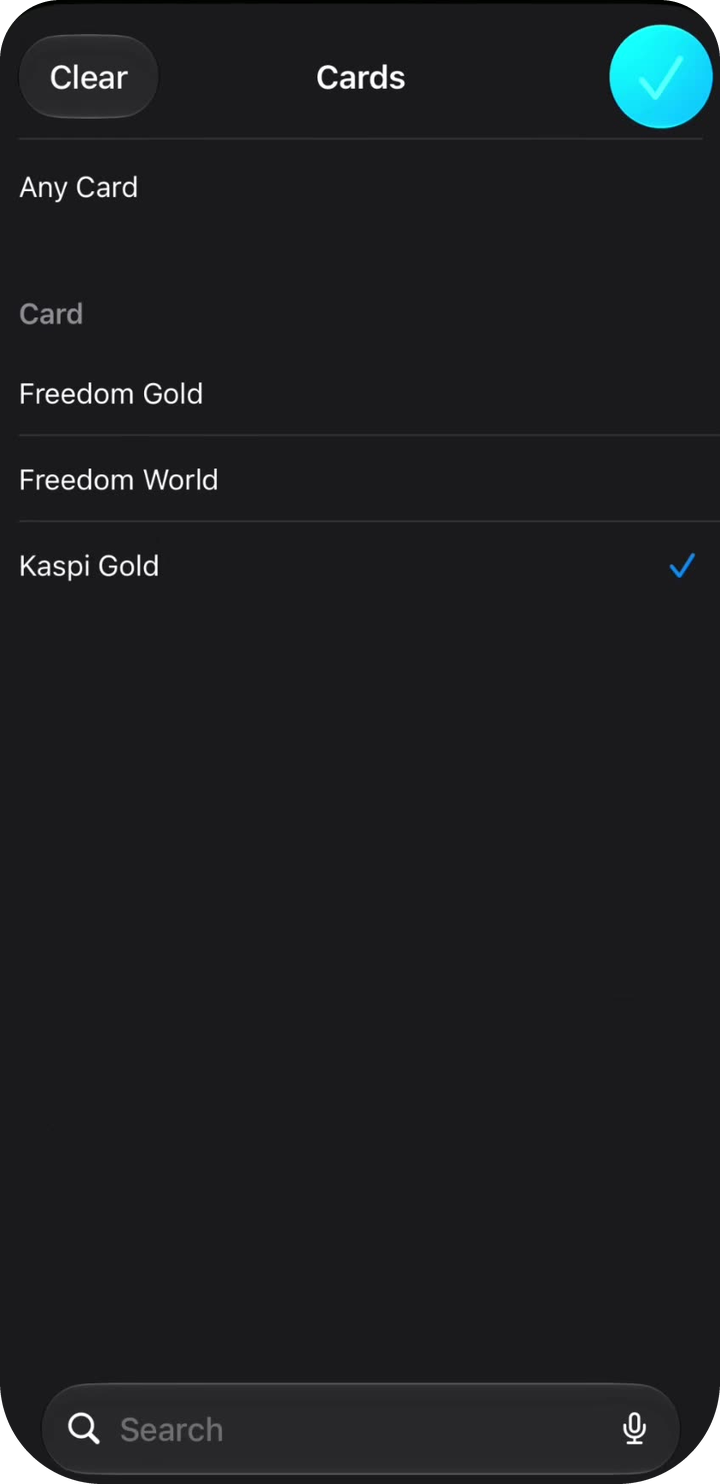
Which card to track -
You should now see one block: When [your card] is tapped. In the search field at the bottom, type Qalta.
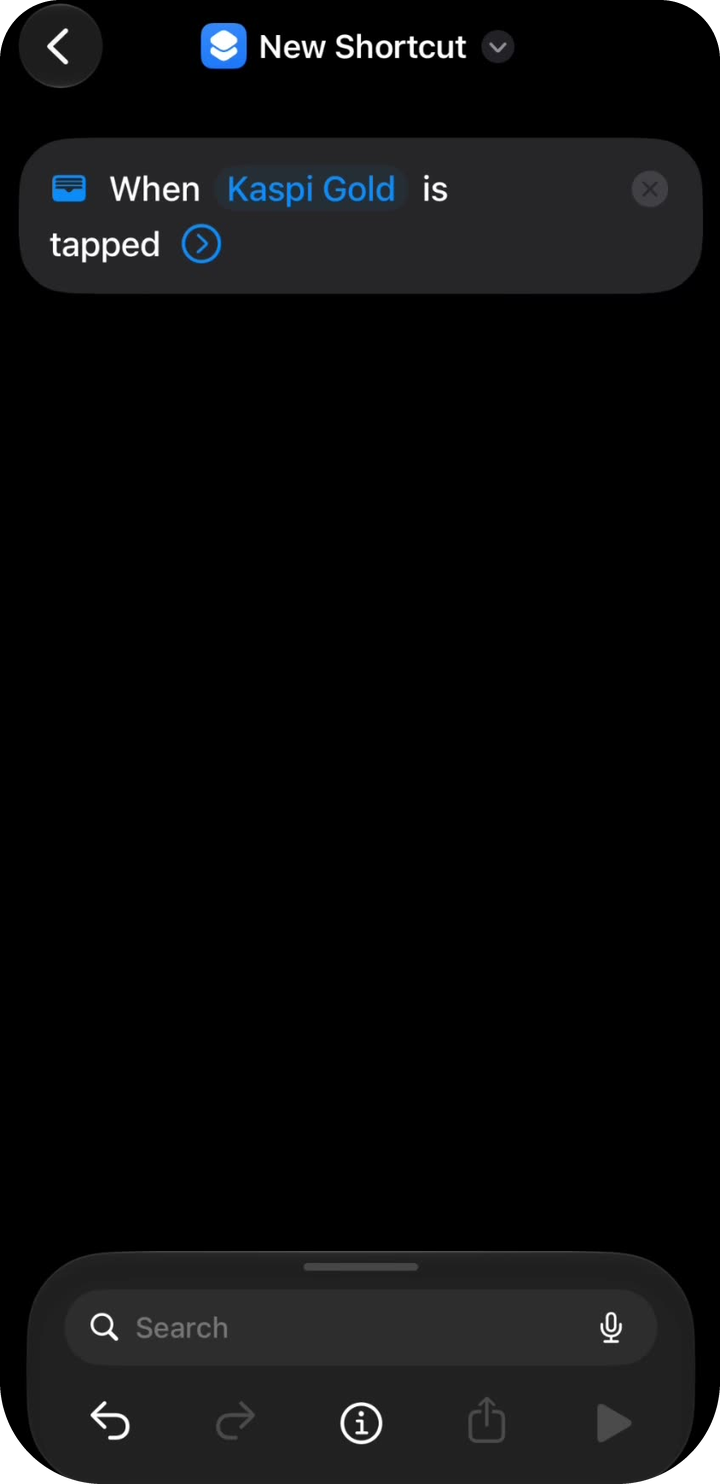
Card trigger is set -
Tap Create Wallet Expense (not “Create Transaction”).
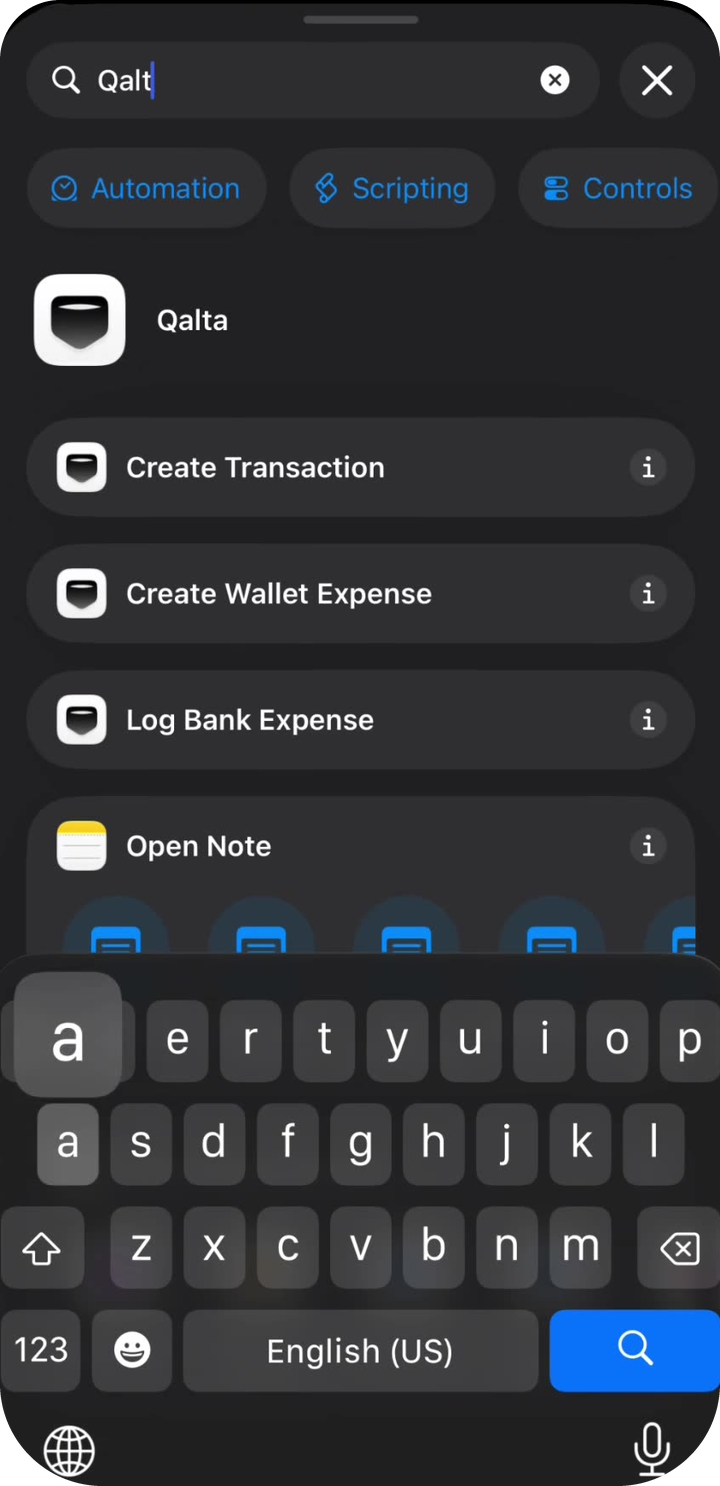
Qalta action -
You should see two blocks: the Wallet trigger and the Qalta action. Tap the gray Amount field — a keypad appears. Above it, tap Select Variable.
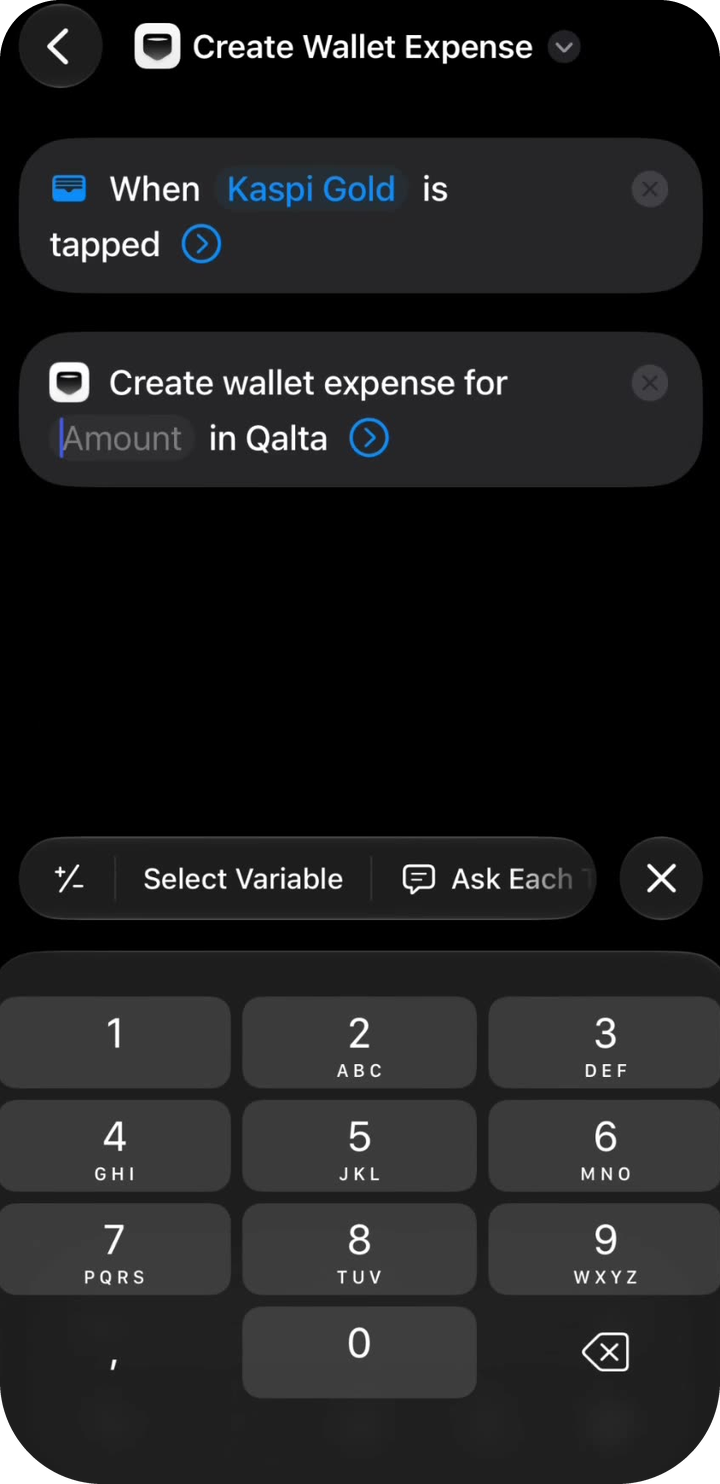
Tap Amount, then Select Variable -
On the Select Variable screen, tap the blue Transaction chip under the Wallet trigger. That is the Apple Pay payment, not Shortcut Input.
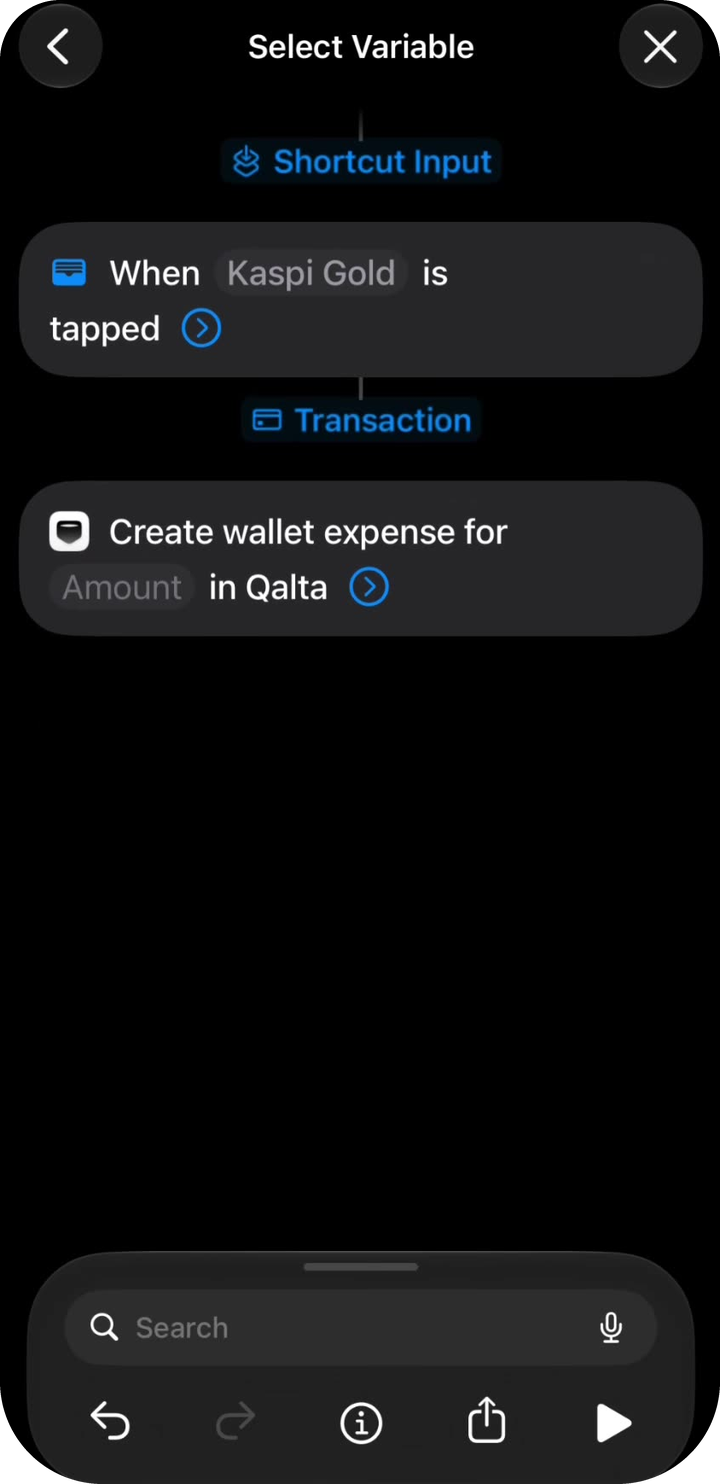
Transaction -
Tap the blue Transaction chip that now sits inside the Qalta action. In the sheet, do not leave the checkmark on “Transaction” — tap Amount.
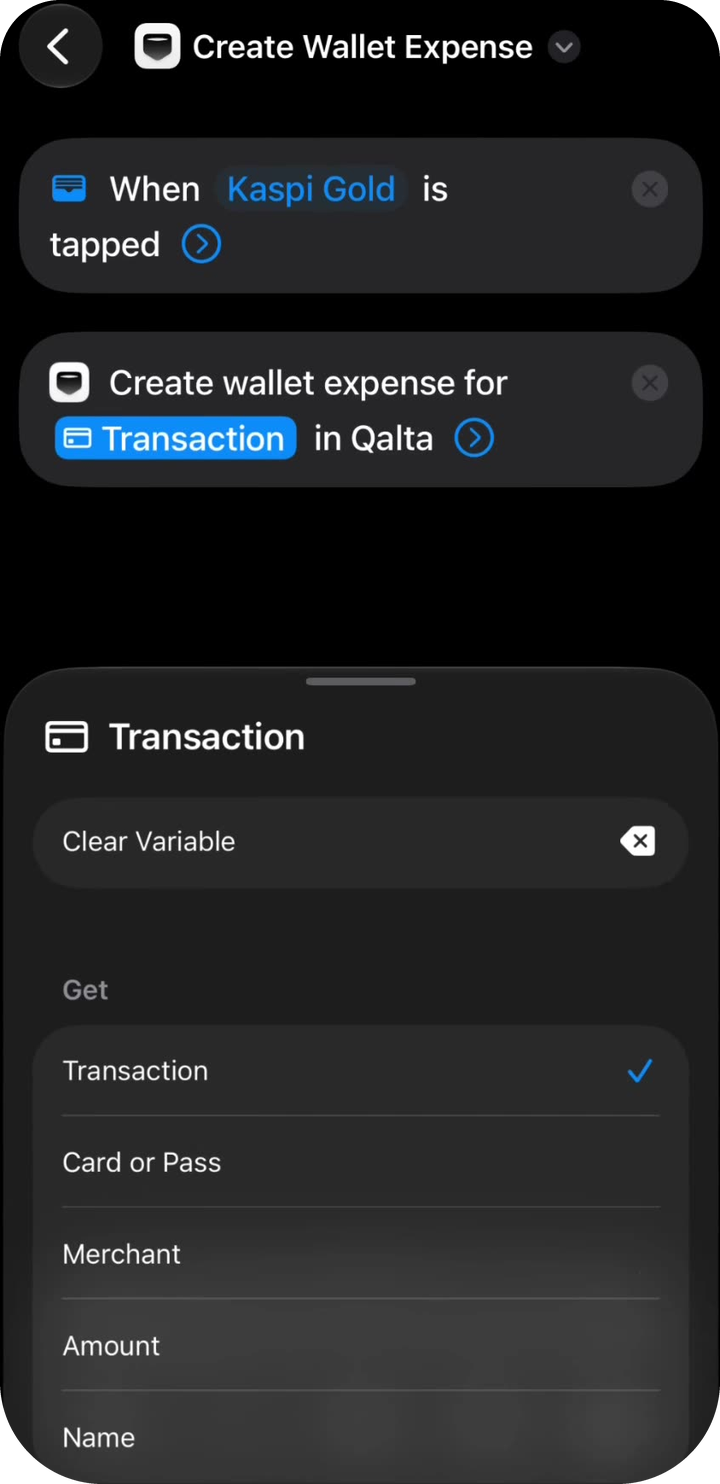
Get → Amount -
Repeat for the store name. Tap the chevron on the Qalta action to expand the fields. Tap Merchant → Select Variable → Transaction. Tap the chip again and pick Merchant from the list — not “Transaction”.
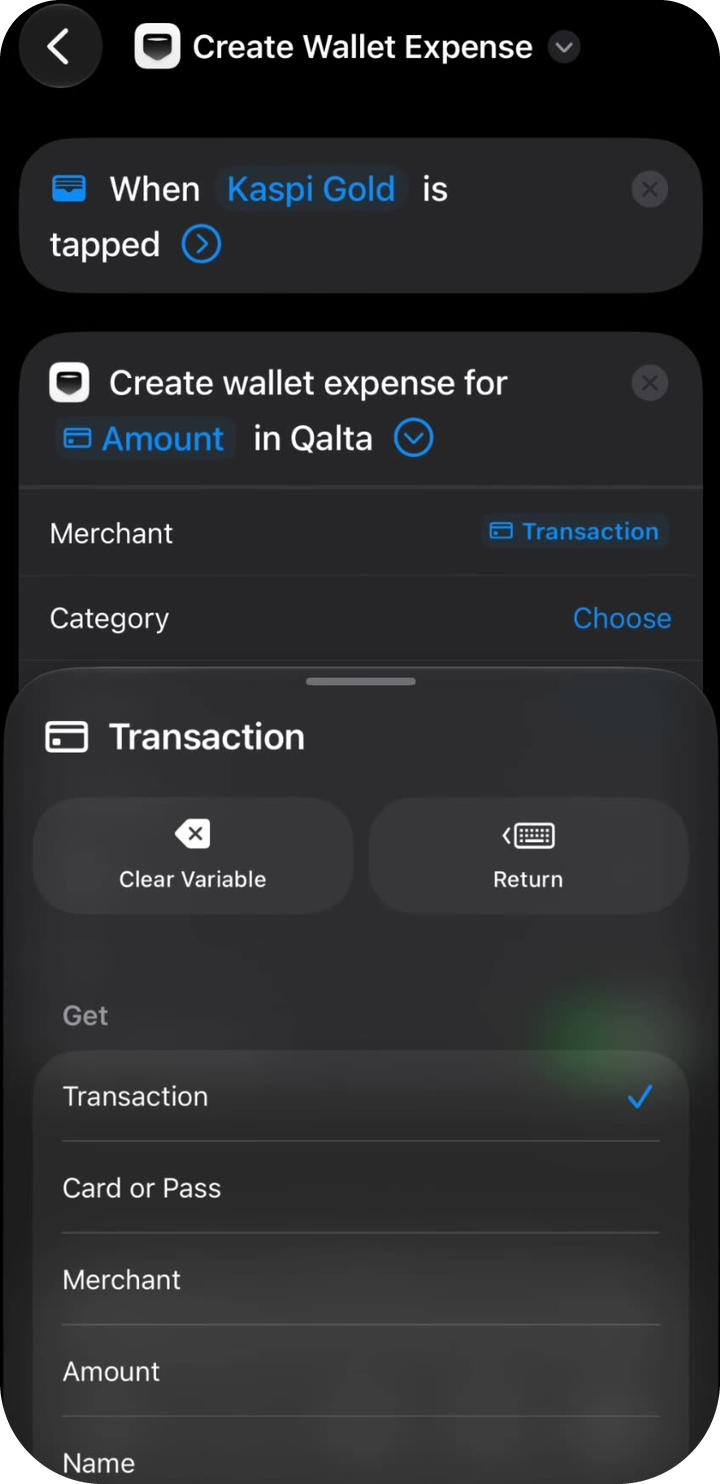
Get → Merchant -
The remaining fields are optional. Options for Category and Account:
- Choose — pick a specific category or account from Qalta. If you only have one account, do that: select it once. You do not need Ask Each Time.
- Ask Each Time — after each payment Qalta will ask where to save the expense. Useful if you have several categories or accounts.
- You can leave Choose empty — Qalta will use defaults and try to detect the category.
Currency, Note, and Date can stay empty. Turn on Show When Run so a confirmation appears after payment. Tap the back arrow.
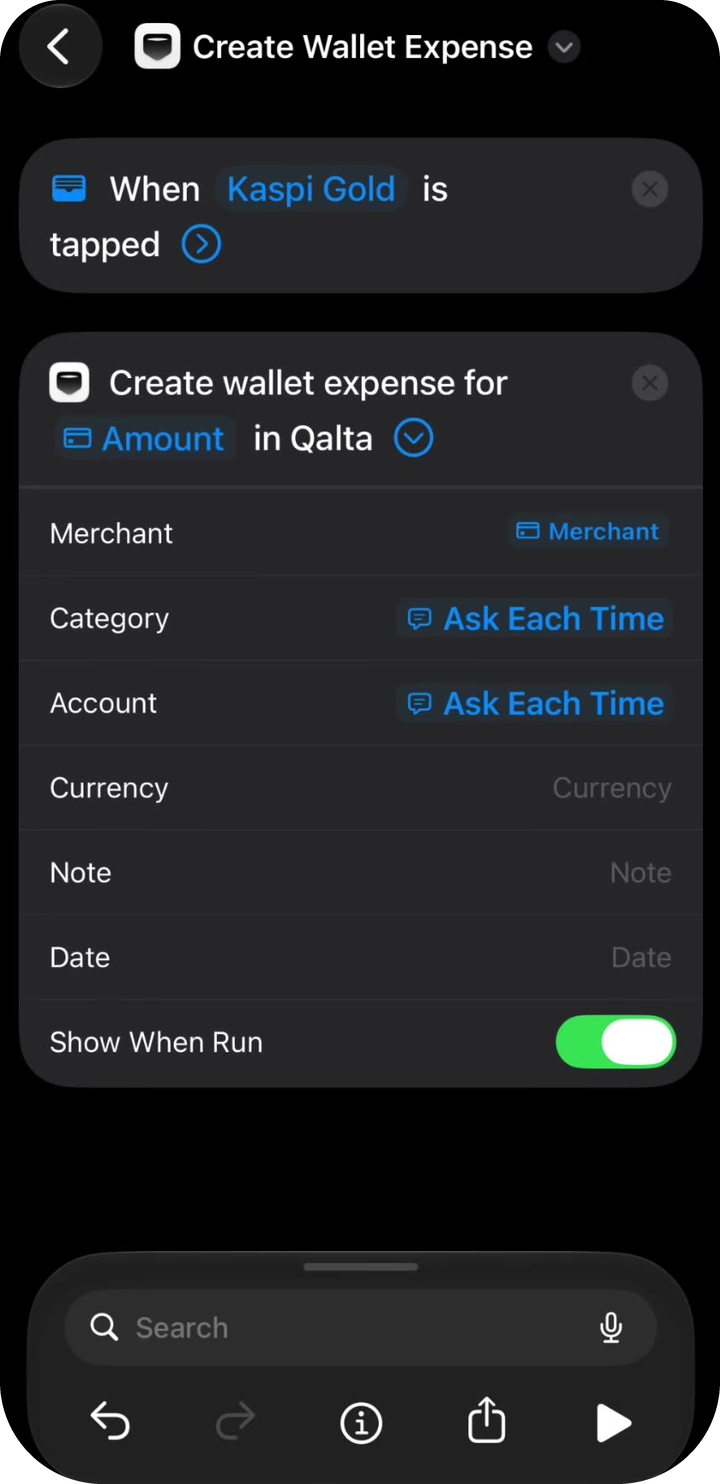
Category, account, and confirmation -
The shortcut appears under All Shortcuts as Create Wallet Expense. After your next Apple Pay purchase with the selected card, Qalta will offer to save the expense.
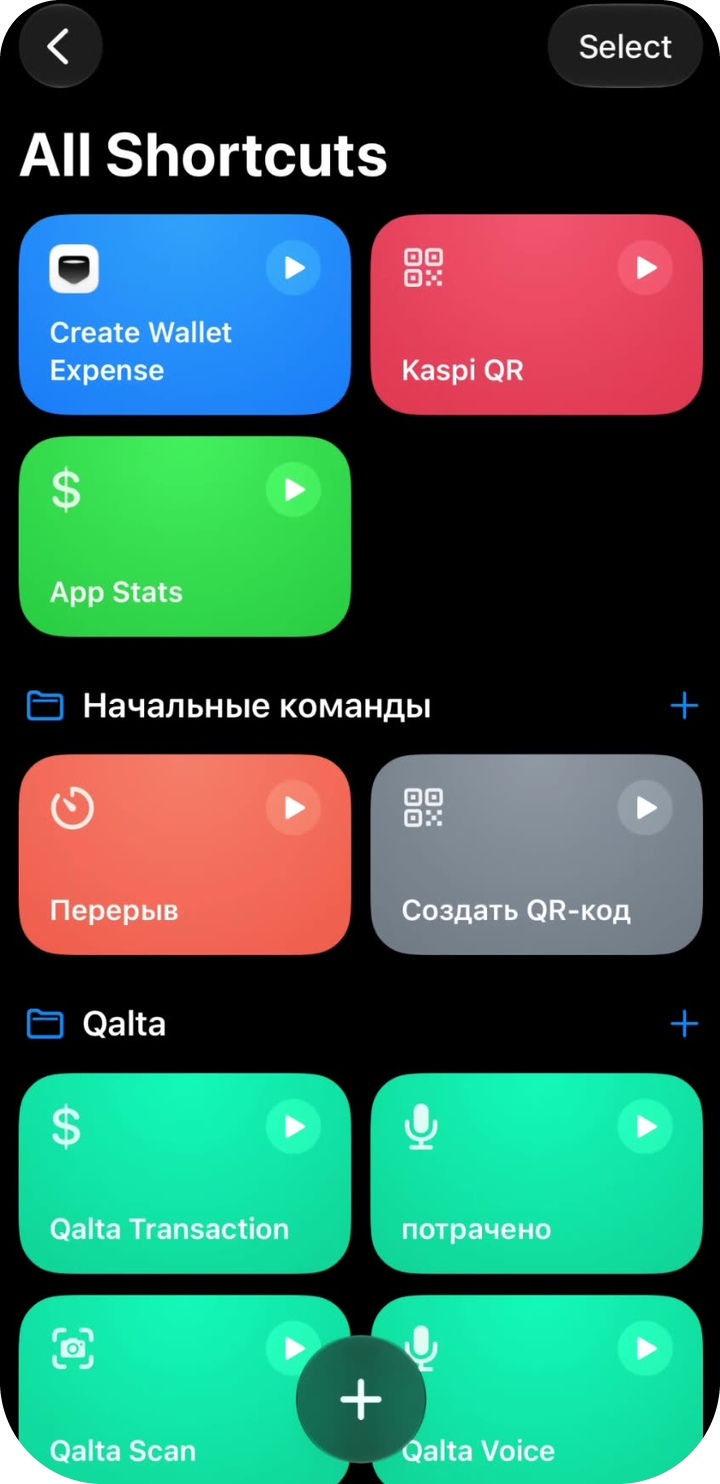
All set
Full video
Prefer to follow along on a screen recording?